Video uploads for Business Pages


If using OSSN:
OSSN version: 7.2
Website URL (optional):
Was just wondering why video uploads aren't available yet for Business Page Component? Seems like the in thing to have for business clients wanting to show off their latest products or instore deals. Just wondering if this is available or in the pipe line for a future Business Page Component update

I.am also interested. Is this upgrade or add on component
I contacted openteknik...Can it be soon? Cause I'm here waiting and I know you guys don't work on the weekends

Contact openteknik
Can you please do it for me. Because now I have 2 premium dropdowns under the same Premium dropdown and I don't know which one to delete. I have dsiabled everything already, and backedup entire website. The upgrade is way to complicated. You guys need to simplifiy this process somehow.
When you extract the files you have premium folder, you need to copy files form that and replace your files, before running upgrade, and you need to disable components mentioned too. You must take backup before doing anything.

enter image description here

Files to extract:
/premium-social-network-89-build-1763744711.zip
Enter the path you wish to extract the files to (if you enter a directory that does not exist it will be created, and the archive extracted in the new directory) and click Extract:
What do I do here? Where do I extract all these files too? Or what should I call the folder? Because what I have been doing is NOT WORKING
Do I click on overwrite files?
Here are non vauge tehnical answer
To update your premium social network to the latest version, follow these detailed steps:
1. Prepare for the Update:
-
Switch to a Premium Theme:
-
Before upgrading, make sure you switch to one of the premium themes.
-
Available themes for this update:
- Multi Purpose
- GoBlue
- Awesome
- Social
-
This is necessary to ensure compatibility with the update.
-
Ensure Proper PHP Version:
- Verify your PHP version. The minimum required version is PHP 8.1 and the maximum supported version is PHP 8.4.
- You can check your PHP version via your hosting control panel or by contacting your hosting provider.
2. Backup Your Data:
-
Create a Full Backup:
- Backup Database: Make sure you create a complete backup of your database.
- Backup Data Directory: Ensure you back up your data directory, which contains important files related to your social network.
- Backup All Files: Do a full backup of all files on your website, including core files and customizations.
3. Login to Your Admin Panel:
-
Access Admin Panel:
- Log in to the Admin Panel of your social network with your admin credentials.
4. Theme Switch & Cache Management:
-
Switch to Premium Theme:
- In your admin panel, switch your theme to one of the premium themes mentioned earlier (e.g., White, GoBlue, Awesome, Social).
- This will ensure that the theme is updated and works smoothly with the latest version of the software.
-
Disable Caching:
- Go to the Settings of your site and disable cache temporarily.
- This will ensure that no old cached data interferes with the update process.
-
Enable Error Reporting:
- In the admin settings, enable error reporting. This will help track and troubleshoot any issues during the update process.
5. Download and Extract the Update:
-
Download the Update File:
- Go to the official website to download the latest version of Premium Social Network:
Download Latest Version - Make sure you're downloading the correct update for your version.
- Go to the official website to download the latest version of Premium Social Network:
-
Extract the Zip File:
- Once downloaded, extract the zip file on your local machine or directly on your server.
- This will give you access to all the necessary files for the upgrade.
6. File Transfer to Hosting:
-
Copy Files to Hosting Folder:
- Transfer all files from the extracted premium folder to your web hosting directory.
- Make sure you copy everything, including the configuration folder, as these files are essential for the update to work properly.
7. Run the Upgrade Script:
-
Start the Upgrade Process:
- Navigate to the upgrade script via your web browser:
yourwebsite.com/upgrade/upgrade.php - This script will guide you through the rest of the update process.
- Navigate to the upgrade script via your web browser:
8. Special Instructions for Upgrading Between Versions:
-
Upgrading from Version 7.x, 8.0, or 8.1 to 8.2 or 8.6:
-
Before proceeding with the upgrade, make sure to disable the following components:
- MenuBuilder
- Categories
- Censorship
- After completing the upgrade, you can re-enable these components.
-
9. Special Instructions for OSSN 5.6 to OSSN 6.x:
-
Delete Outdated Components:
-
If you're upgrading from OSSN 5.6 to OSSN 6.x, some older components need to be manually deleted:
- Sentiment
- BusinessPage
- Censorship
-
Note: These components should be removed from the components directory on your server, NOT through the OSSN admin panel. Deleting them via the admin panel could cause issues.
-
10. After the Update:
-
Verify the Update:
- After the upgrade script completes, visit your website and confirm that the site is running the new version.
- Ensure that all themes and components are working properly and that there are no errors on the front-end or back-end.
-
Clear Cache:
- If you had previously disabled cache, go ahead and re-enable caching now that the update is complete.
-
Test Functionality:
- Test all major functionalities of your social network to make sure everything is working smoothly:
- User registration/login
- Post creation and sharing
- Notifications
- Any custom components or features
- If you encounter issues, review the error logs and check if all necessary files were uploaded correctly.
11. Final Checklist:
- Backup of database, data directory, and all files created
- PHP version between 8.1 and 8.4
- Premium theme activated
- Cache disabled and error reporting enabled
- Latest version downloaded and extracted
- Files transferred to hosting, including the configuration folder
- Upgrade script run successfully
- Outdated components deleted (for OSSN 5.6 to 6.x upgrade)
- MenuBuilder, Categories, and Censorship disabled before upgrade (if upgrading from 7.x, 8.0, or 8.1)
- Site tested and verified for functionality
- Cache re-enabled
How i am vague? i told you to update your premium social network, where did you purcahsed your social network? you need to download it from there.
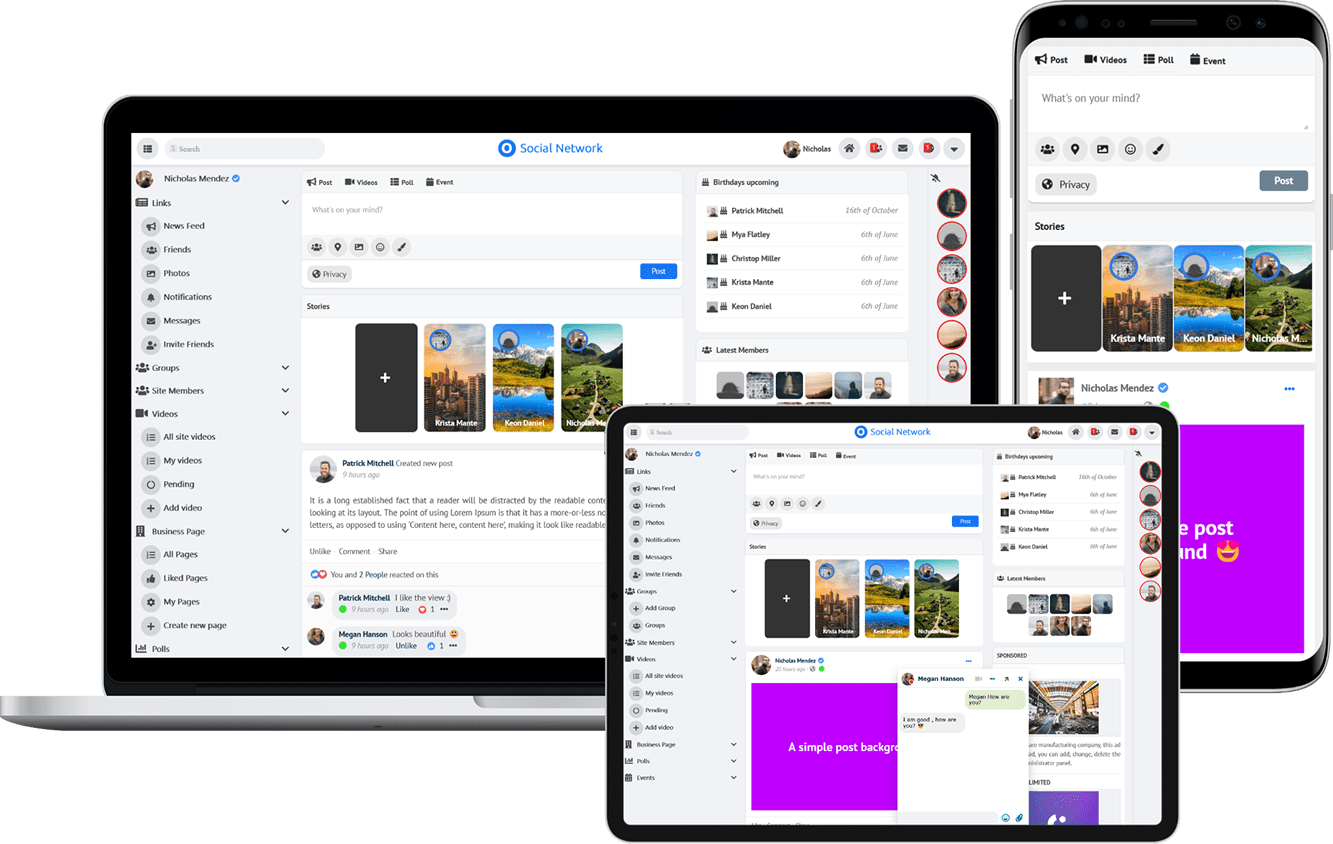
Due to the many requests in the past for additonal features and components we have decided to develope a premium version. Features like Hashtags, Videos, Polls, Events, Stories, Link Preview, etc included in it.
 $199 (Life Time)
Learn More